
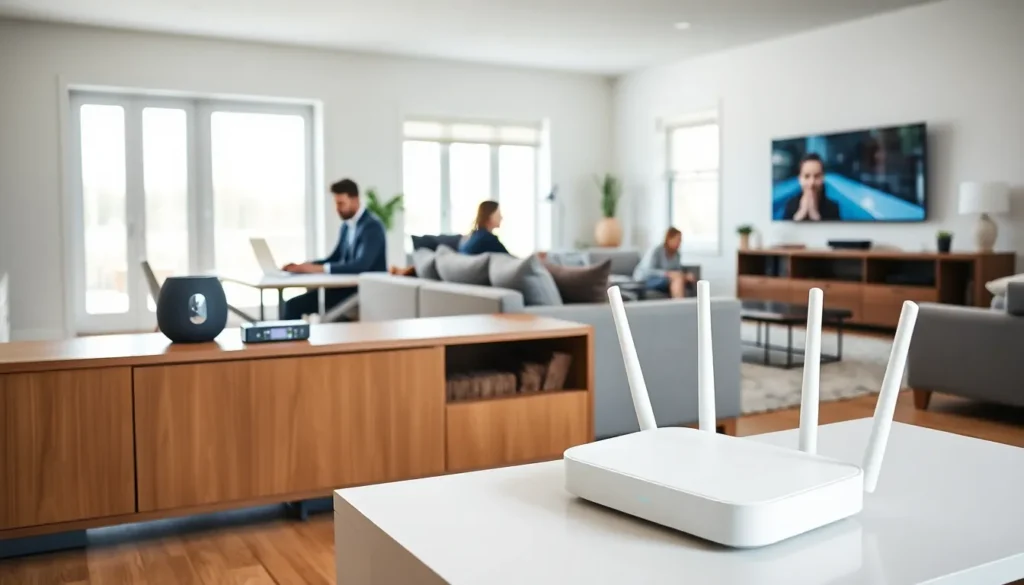

Home networking examples range from simple single-router setups to advanced multi-device configurations. Every household has different connectivity needs. A family streaming 4K video requires different equipment than a remote worker running video calls all day. This guide breaks down practical home networking examples that work for real people. Whether someone needs basic internet access or wants to connect dozens of smart devices, there’s a setup that fits. The right home network improves daily life, faster downloads, reliable connections, and fewer dropped signals. Let’s explore the options.
Table of Contents
ToggleKey Takeaways
- Home networking examples range from basic single-router setups for small spaces to mesh networks and smart home configurations for larger, more complex needs.
- A basic home network with a modem and router works well for 5-10 devices and covers up to 2,000 square feet when placed centrally.
- Mesh networks eliminate dead zones and reduce connection drops by 73%, making them ideal for larger homes with 15-25 connected devices.
- Smart home networks benefit from segmentation—separating IoT devices on a guest network protects personal data from security vulnerabilities.
- Home office setups require ethernet connections, QoS settings, and at least 100 Mbps download speed for reliable video conferencing and remote work.
- Adding a mobile hotspot or secondary ISP connection provides backup internet for critical work situations.
Basic Home Network Setup
A basic home network setup works well for apartments and small homes. This configuration serves households with moderate internet needs, checking email, browsing social media, and streaming standard video content.
Equipment Needed
The essential components include:
- Modem: Connects to the internet service provider
- Wireless router: Broadcasts Wi-Fi signal throughout the home
- Ethernet cables: Connect devices that need stable, fast connections
Many ISPs provide a modem-router combo unit. These all-in-one devices simplify the setup process.
How It Works
The modem receives the internet signal from the ISP. It passes that signal to the router. The router then distributes the connection wirelessly to phones, tablets, laptops, and smart TVs. Devices close to the router get stronger signals. Those farther away may experience slower speeds.
Best Practices
Place the router in a central location. Avoid putting it near microwaves, cordless phones, or thick walls. These obstacles weaken Wi-Fi signals. A single router typically covers 1,500 to 2,000 square feet effectively.
This home networking example suits households with 5-10 connected devices. It’s affordable and requires minimal technical knowledge to set up.
Mesh Network Configuration
Mesh networks solve the coverage problems that single routers can’t handle. They work best in larger homes, multi-story buildings, or spaces with unusual layouts.
What Makes Mesh Different
A mesh system uses multiple access points (called nodes) placed throughout the home. These nodes communicate with each other to create one seamless network. Users don’t need to switch between networks when moving from room to room.
Equipment Setup
A typical mesh home network includes:
- Primary node: Connects directly to the modem
- Satellite nodes: Placed in different rooms or floors
- Smartphone app: Manages the entire system
Popular mesh systems include Google Nest WiFi, Eero, and TP-Link Deco. Most packages include 2-3 nodes, covering homes up to 5,000 square feet.
Installation Tips
Space nodes evenly throughout the home. Each satellite should be within range of at least one other node. Most systems recommend placing nodes 30-40 feet apart. The primary node connects to the modem via ethernet cable.
Performance Benefits
Mesh home networking examples show significant improvements in dead zone elimination. A 2023 consumer study found mesh networks reduced connection drops by 73% compared to single-router setups. They also handle more simultaneous devices, perfect for families with 15-25 connected gadgets.
Smart Home Integration Network
Smart home devices require special network considerations. Lights, thermostats, cameras, and voice assistants all compete for bandwidth and security attention.
Network Requirements
Smart home networking examples typically include:
- Dual-band or tri-band router: Separates device traffic across frequencies
- IoT hub: Centralizes control for Zigbee and Z-Wave devices
- Guest network: Isolates smart devices from personal computers
Why Segmentation Matters
Smart devices often have weak security protocols. Hackers target them as entry points into home networks. Creating a separate network for IoT devices protects personal data. Most modern routers support guest networks or VLANs for this purpose.
Typical Configuration
A smart home network setup looks like this:
- Main network (5GHz): Phones, laptops, tablets
- Smart device network (2.4GHz): Cameras, speakers, sensors
- Guest network: Visitors and temporary devices
Bandwidth Management
Some home networking examples include Quality of Service (QoS) settings. QoS prioritizes certain devices or activities. Video calls and gaming get priority over background downloads. This prevents smart home traffic from slowing down important tasks.
Homes with 20+ smart devices benefit from routers with stronger processors. Budget routers struggle to manage many simultaneous connections.
Home Office Network Setup
Remote work demands reliable, secure network connections. Home office networking examples prioritize speed, stability, and data protection.
Essential Components
A solid home office network includes:
- High-speed router with QoS: Prioritizes work applications
- Ethernet connection: Hardwired connection for the primary workstation
- VPN capability: Secures remote access to company resources
- UPS battery backup: Protects against power outages
Wired vs. Wireless
Ethernet connections deliver faster, more stable speeds than Wi-Fi. For video conferences and large file transfers, a direct cable connection prevents lag and packet loss. Most home offices benefit from running ethernet to the desk, even if other household devices use Wi-Fi.
Security Considerations
Home office networking examples must address corporate security requirements. Key measures include:
- Strong router passwords (not default credentials)
- WPA3 encryption when available
- Regular firmware updates
- VPN usage for sensitive work
Bandwidth Requirements
Video conferencing apps like Zoom recommend 3.8 Mbps for HD video. Add other household users, and bandwidth needs climb quickly. A home office network should have at least 100 Mbps download speed for households where multiple people work or learn remotely.
Backup Options
Smart home office setups include redundancy. A mobile hotspot serves as a backup internet connection. Some remote workers maintain a second ISP connection for critical meetings. These home networking examples prevent career-damaging disconnections.


