
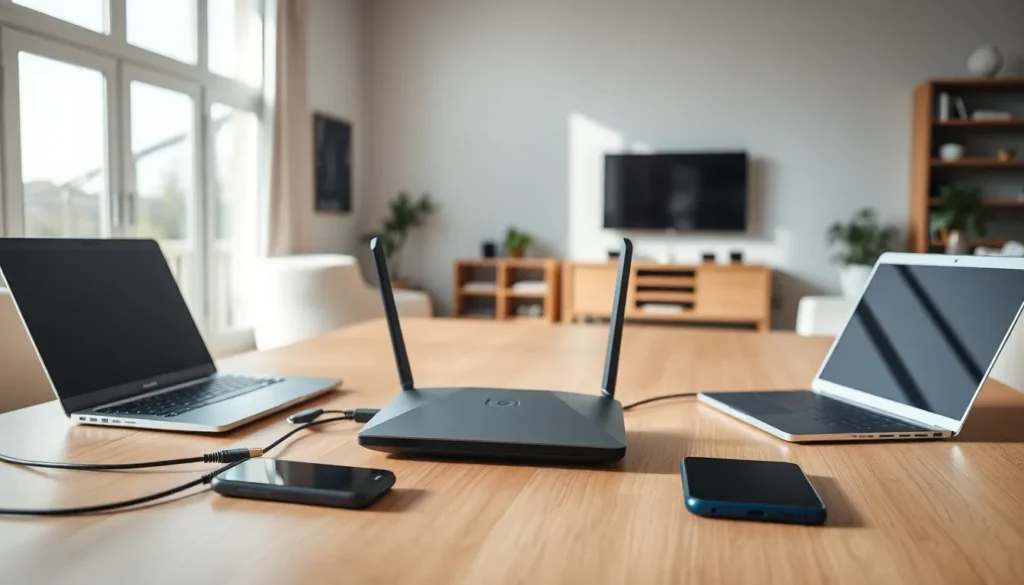

Home networking techniques determine how well devices connect and communicate within a household. A strong home network supports streaming, gaming, remote work, and smart home devices without frustrating slowdowns or dead zones.
This guide covers the core components of home network setup, compares wired and wireless options, and offers practical tips for improving Wi-Fi performance. It also addresses security practices that protect personal data from unauthorized access. Whether someone is setting up their first network or upgrading an existing one, these home networking techniques provide a solid foundation for reliable connectivity.
Table of Contents
ToggleKey Takeaways
- Understanding your modem, router, and network topology forms the foundation of effective home networking techniques.
- A hybrid setup using Ethernet for stationary devices and Wi-Fi for mobile devices maximizes speed and flexibility.
- Position your router centrally and elevated to optimize Wi-Fi coverage throughout your home.
- Mesh network systems provide more consistent coverage than range extenders for larger homes.
- Secure your network by changing default passwords, using WPA3 encryption, and creating a separate guest network for IoT devices.
- Keep router firmware updated to fix bugs, improve performance, and protect against security vulnerabilities.
Understanding Your Home Network Setup
A home network connects devices like computers, smartphones, tablets, and smart TVs to the internet and to each other. The basic components include a modem, router, and connected devices.
The modem receives the internet signal from a service provider. It translates that signal into data that devices can use. Most internet plans require a modem, though some providers offer modem-router combinations.
The router distributes the internet connection to multiple devices. It creates a local network and assigns IP addresses to each connected device. Modern routers broadcast Wi-Fi signals, allowing wireless connections throughout the home.
Switches and access points expand network capacity. A switch adds more Ethernet ports for wired connections. An access point extends Wi-Fi coverage to areas the main router can’t reach effectively.
Understanding these home networking techniques starts with knowing what equipment is already in place. Check the existing modem and router models. Older devices may not support current Wi-Fi standards or faster internet speeds. A router from 2015, for example, likely won’t handle a 500 Mbps connection efficiently.
Network topology matters too. A simple star topology, where all devices connect directly to a central router, works well for most homes. Larger homes may benefit from a mesh network, which uses multiple access points that communicate with each other to provide consistent coverage.
Wired vs. Wireless Networking Options
Choosing between wired and wireless connections is one of the most important home networking techniques decisions.
Wired Connections
Ethernet cables provide the fastest and most stable connections. They eliminate interference issues and deliver consistent speeds. For activities that demand low latency, like online gaming or video conferencing, wired connections perform better.
Cat6 cables support speeds up to 10 Gbps over short distances. Cat5e cables handle 1 Gbps, which suits most residential needs. Running cables through walls requires some effort, but the reliability payoff is significant.
Powerline adapters offer an alternative when running cables isn’t practical. These devices send network signals through electrical wiring. Performance varies based on home wiring quality, but they can extend connectivity to distant rooms.
Wireless Connections
Wi-Fi provides convenience and flexibility. Devices connect without physical cables, making it easy to move around. Modern Wi-Fi 6 (802.11ax) routers handle more simultaneous connections with less congestion than older standards.
Wireless connections do have limitations. Walls, floors, and appliances can weaken signals. Distance from the router affects speed. But for everyday browsing, streaming, and casual gaming, Wi-Fi works well.
The Best Approach
Many households use a hybrid setup. Desktop computers, gaming consoles, and smart TVs connect via Ethernet for stability. Laptops, phones, and tablets use Wi-Fi for mobility. This combination maximizes the benefits of both home networking techniques.
Optimizing Wi-Fi Coverage and Performance
Poor Wi-Fi coverage frustrates everyone. These home networking techniques help improve signal strength and speed throughout a home.
Router Placement
Position the router in a central location. Wi-Fi signals radiate outward in all directions, so a central spot provides the most even coverage. Avoid placing the router in a corner, basement, or closet.
Elevate the router. Placing it on a shelf or mounting it on a wall improves signal distribution. Keep it away from metal objects, microwaves, and cordless phones, these can interfere with Wi-Fi signals.
Channel Selection
Routers broadcast on specific channels. In crowded areas, neighboring networks may use the same channel, causing interference. Access the router’s admin panel and switch to a less congested channel. Tools like Wi-Fi Analyzer apps show which channels nearby networks use.
The 5 GHz band offers more channels and less interference than the 2.4 GHz band. But, 5 GHz signals don’t travel as far through walls. Use 5 GHz for devices close to the router and 2.4 GHz for those farther away.
Mesh Networks and Extenders
Large homes often need additional equipment. Mesh network systems use multiple units that work together seamlessly. Devices automatically connect to the strongest node as users move around.
Range extenders cost less but create separate networks. They can reduce overall speed because they repeat signals rather than creating a unified system. For consistent performance, mesh systems are the better investment.
Firmware Updates
Router manufacturers release firmware updates that fix bugs and improve performance. Check for updates every few months through the router’s admin interface. Some modern routers update automatically, which simplifies this home networking technique.
Essential Security Practices for Home Networks
An unsecured home network invites trouble. Hackers can steal personal data, hijack devices, or use the connection for illegal activities. These home networking techniques protect against common threats.
Strong Passwords
Change the default router password immediately. Default credentials are publicly known and easily exploited. Create a unique password with at least 12 characters, mixing letters, numbers, and symbols.
Set a strong Wi-Fi password too. WPA3 encryption provides the best protection. If the router only supports WPA2, that’s still acceptable, just avoid WEP, which hackers can crack in minutes.
Network Segmentation
Create a separate guest network for visitors and IoT devices. This keeps smart home gadgets isolated from computers containing sensitive data. If a smart speaker gets compromised, the attacker can’t easily access other network resources.
Most modern routers include a guest network feature in their settings. Enable it and use a different password than the main network.
Disable Unnecessary Features
Turn off WPS (Wi-Fi Protected Setup). It creates a security vulnerability that attackers can exploit. Disable remote management unless there’s a specific need for it.
Review connected devices regularly. Unknown devices on the network could indicate unauthorized access. Most router admin panels display a list of all connected devices with their names and MAC addresses.
Keep Equipment Updated
Outdated firmware contains known vulnerabilities. Apply security patches promptly. Consider replacing routers older than five years, they may not receive security updates anymore, leaving home networking techniques incomplete without proper protection.


