
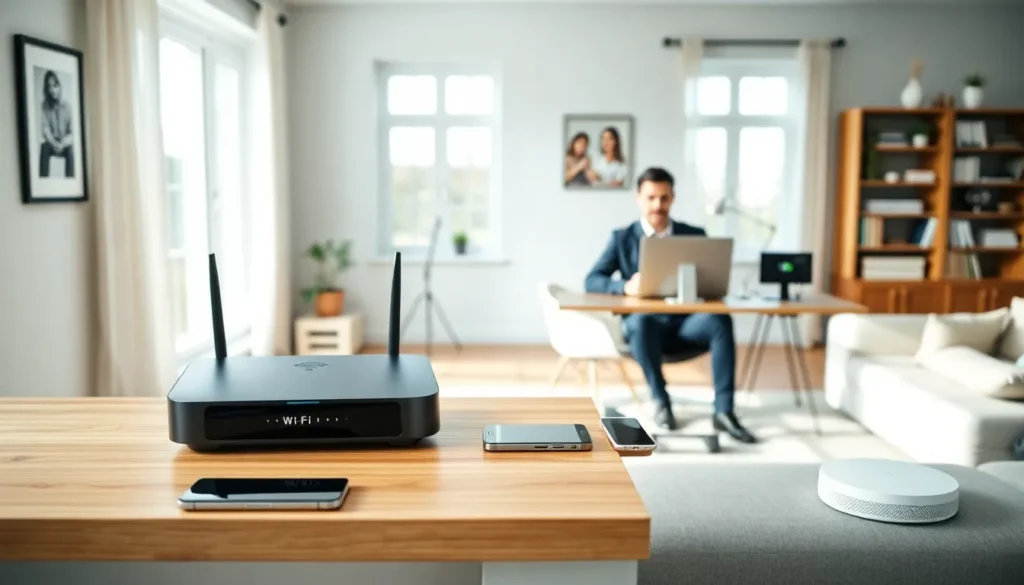

A slow or unreliable home network frustrates everyone. Streaming buffers mid-show. Video calls freeze at the worst moments. Smart devices disconnect without warning. These problems share a common cause: poor home networking strategies.
The good news? Most connectivity issues are fixable. With the right approach, households can build networks that handle multiple devices, stream 4K content, and support remote work without hiccups. This guide covers everything from assessing current needs to securing the final setup. Readers will learn how to choose equipment, extend coverage, and protect their network from threats.
Table of Contents
ToggleKey Takeaways
- Start your home networking strategy by counting all connected devices and assessing bandwidth needs based on how your household uses the internet.
- Upgrade to a Wi-Fi 6 router for better speed, more simultaneous connections, and improved performance over older equipment.
- Place your router in a central, elevated location away from interference-causing devices like microwaves and cordless phones.
- Use mesh network systems to eliminate dead zones in larger homes, as they provide seamless coverage across multiple rooms and floors.
- Secure your network by changing default credentials, enabling WPA3 encryption, and creating a separate guest network for visitors and IoT devices.
- Run Ethernet cables to stationary devices like gaming consoles and smart TVs for the most reliable home networking performance.
Assessing Your Home Network Needs
Every effective home networking strategy starts with an honest assessment. How many devices connect to the network daily? The answer often surprises people. A typical household now runs 10 to 15 connected devices, smartphones, laptops, tablets, smart TVs, gaming consoles, and IoT gadgets like thermostats and doorbells.
Start by counting every device that needs internet access. Include those used by family members, guests, and any smart home equipment. Write them down. This list reveals the true demand on the network.
Next, consider how people use the internet. Streaming video requires steady bandwidth. Online gaming demands low latency. Video conferencing needs both. A household with three remote workers has different requirements than a family that mostly browses social media.
Square footage matters too. A 900-square-foot apartment presents fewer coverage challenges than a 3,000-square-foot two-story home. Walls, floors, and building materials affect signal strength. Concrete and brick block signals more than drywall.
Finally, think about internet speed. Check the current plan with the internet service provider. Many home networking strategies fail because the incoming connection can’t support household demand. A 50 Mbps plan won’t serve a family of five streaming simultaneously.
Choosing the Right Router and Equipment
The router forms the foundation of any home networking strategy. Older routers, especially those provided free by ISPs, often lack the power modern households need.
Wi-Fi 6 (802.11ax) routers offer significant improvements over previous generations. They handle more simultaneous connections, provide faster speeds, and consume less battery on connected devices. For most homes, a Wi-Fi 6 router represents the best value in 2025.
Wi-Fi 7 routers have entered the market, but they cost more and few devices currently support the standard. Early adopters may consider them, but Wi-Fi 6 remains practical for most users.
Key Router Specifications
Look for these features when shopping:
- Dual-band or tri-band support: Dual-band routers broadcast on 2.4 GHz and 5 GHz frequencies. Tri-band adds a second 5 GHz band for heavy traffic homes.
- MU-MIMO technology: This allows the router to communicate with multiple devices at once instead of switching between them.
- Processor speed: A faster processor handles more traffic smoothly.
- Ethernet ports: Wired connections remain faster and more stable than wireless for desktops and gaming consoles.
For larger homes, mesh network systems outperform single routers. These systems use multiple nodes placed throughout the house to create unified coverage. Popular options include systems from Eero, Google Nest, and TP-Link Deco.
Optimizing Wi-Fi Coverage Throughout Your Home
Even the best router can’t overcome poor placement. Location affects performance more than most people realize.
Place the router in a central location. Corners and closets limit signal reach. Elevate it, routers perform better on shelves or mounted on walls than sitting on floors. Keep the router away from microwaves, cordless phones, and baby monitors. These devices operate on similar frequencies and cause interference.
For multi-story homes, a single router rarely covers everything. Dead zones appear in far bedrooms, basements, and outdoor spaces. Here, home networking strategies must include range extension.
Extending Your Coverage
Three main options exist for expanding coverage:
Mesh systems work best for most situations. They create a seamless network where devices automatically connect to the strongest node. Users move through the house without disconnecting.
Wi-Fi extenders cost less but have drawbacks. They create separate networks and often cut bandwidth in half. They’re acceptable for light-use areas like guest rooms.
Powerline adapters use electrical wiring to carry internet signals. They work well in homes where running Ethernet cables isn’t possible. Performance depends on the age and quality of the home’s electrical system.
For the most reliable home networking strategy, run Ethernet cables to stationary devices whenever possible. Wired connections don’t suffer from interference or signal degradation. Gaming PCs, smart TVs, and home offices benefit greatly from direct connections.
Securing Your Home Network
An unsecured network invites problems. Hackers can steal personal information, access smart home devices, or use the connection for illegal activity. Security belongs in every home networking strategy.
Start with the basics. Change the default router username and password. Manufacturers ship routers with generic credentials like “admin” and “password.” Attackers know these defaults.
Create a strong Wi-Fi password. Use at least 12 characters with a mix of letters, numbers, and symbols. Avoid obvious choices like addresses or pet names.
Essential Security Steps
- Enable WPA3 encryption: This is the current security standard. If the router only supports WPA2, use that, but never WEP, which is easily cracked.
- Update firmware regularly: Router manufacturers release updates that patch security holes. Enable automatic updates if available.
- Create a guest network: Visitors and IoT devices should connect to a separate network. This protects primary devices if a smart bulb or guest phone gets compromised.
- Disable WPS: Wi-Fi Protected Setup creates security vulnerabilities. Turn it off in router settings.
Consider network monitoring tools. Many modern routers include apps that show connected devices and flag suspicious activity. Check this list periodically. An unfamiliar device could indicate unauthorized access.
For households with children, parental controls offer another layer of protection. Most routers allow content filtering and time limits on specific devices.


