
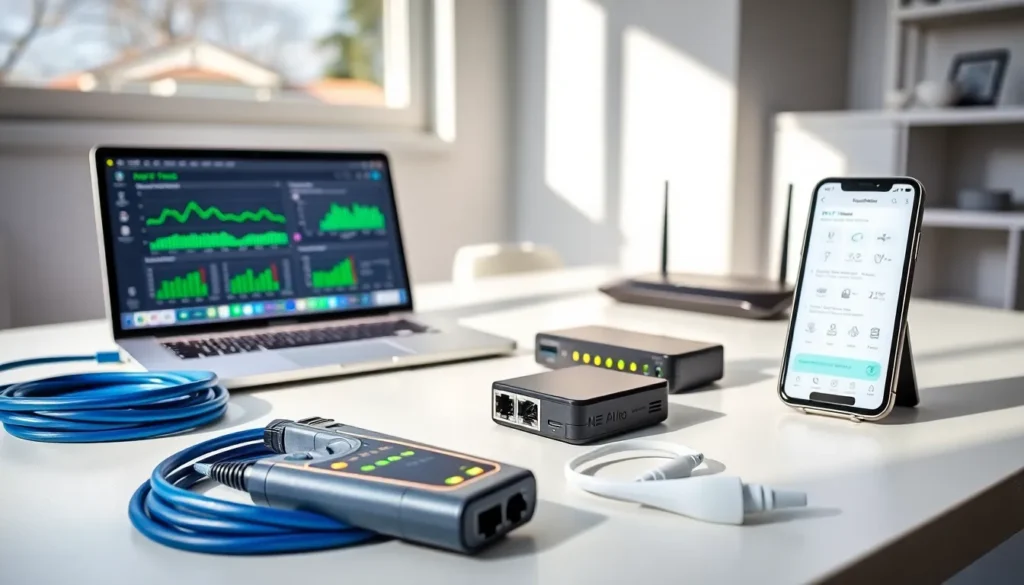

Home networking tools make the difference between a frustrating internet experience and a reliable, fast connection throughout every room. Whether someone is dealing with dead zones, slow speeds, or mysterious connectivity drops, the right equipment can turn a headache into a quick fix.
Most homeowners don’t realize they can diagnose and solve many network problems themselves. A basic toolkit, combining physical equipment with software solutions, saves money on service calls and keeps households connected. This guide covers the essential home networking tools that belong in every homeowner’s arsenal, from cable testers to Wi-Fi analyzers.
Table of Contents
ToggleKey Takeaways
- Home networking tools like cable testers, Wi-Fi analyzers, and diagnostic software help homeowners troubleshoot connectivity issues without costly service calls.
- A basic cable tester ($15–$50) quickly identifies faulty Ethernet cables, saving hours of misdirected troubleshooting.
- Free network diagnostic apps like Fing and speed testers reveal bandwidth hogs, unknown devices, and ISP performance issues.
- Wi-Fi analyzer apps show channel congestion and signal strength, making it easy to optimize router settings for better performance.
- Hardware tools like Ethernet switches, powerline adapters, and USB Wi-Fi adapters expand coverage and help isolate network problems.
- Building a basic home networking toolkit empowers you to diagnose and fix most connection issues yourself.
Cable Testing and Termination Tools
Physical cables remain the backbone of any home network, and problems here cause more issues than people expect. A cable tester quickly identifies whether an Ethernet run is faulty, saving hours of troubleshooting in the wrong direction.
Cable Testers
A basic cable tester costs between $15 and $50 and pays for itself after one service call avoided. These devices check continuity, wire mapping, and connection quality. Higher-end models also measure cable length and identify the exact location of breaks or shorts.
For most homeowners, a simple continuity tester works fine. It confirms that all eight wires in an Ethernet cable connect properly from end to end. Anyone running cables through walls should consider this tool essential.
Crimping Tools and Punch-Down Equipment
Those who install their own Ethernet runs need crimping tools to attach RJ-45 connectors. A decent crimper runs about $20-30 and handles Cat5e through Cat6a cables. Cheap crimpers often create inconsistent connections, so spending a bit more here makes sense.
Punch-down tools work with keystone jacks and patch panels. They push individual wires into connection slots quickly and cleanly. A basic punch-down tool costs under $15 and lasts for years.
Wire Strippers and Cable Jackets
Proper wire strippers prevent damage to the delicate wires inside Ethernet cables. Universal strippers that handle multiple cable types offer the best value. Some home networking tools combine stripping, cutting, and crimping functions into one device.
Network Diagnostic Software and Apps
Software-based home networking tools help identify problems without any physical equipment. Many options are free, and they provide insights that would otherwise require professional diagnostics.
Speed Testing Applications
Speed tests from Ookla, Fast.com, or Google measure actual throughput versus what an ISP promises. Running tests at different times reveals patterns, maybe speeds drop during peak evening hours, or a specific device consistently underperforms.
For accurate results, users should test over both Wi-Fi and wired connections. A significant difference points to wireless issues rather than ISP problems.
Network Scanners
Apps like Fing, Advanced IP Scanner, or Angry IP Scanner show every device connected to a network. They display IP addresses, MAC addresses, and device names. This information helps identify unknown devices that might be using bandwidth, or indicates a security concern.
Network scanners also reveal which IP addresses are available when setting up static IPs for servers or smart home devices.
Ping and Traceroute Utilities
Built-in command-line tools like ping and traceroute remain valuable for diagnosing connectivity issues. Ping tests whether a specific address responds and measures latency. Traceroute shows the path data takes to reach a destination, revealing where slowdowns occur.
Windows users access these through Command Prompt. Mac and Linux users find them in Terminal. Several apps also provide graphical interfaces for these functions.
Wi-Fi Analysis and Optimization Tools
Wi-Fi problems frustrate homeowners more than almost any other home networking issue. Analysis tools identify interference, channel congestion, and signal strength problems that cause slow speeds and dropped connections.
Wi-Fi Analyzer Apps
Free apps like NetSpot, WiFi Analyzer, and inSSIDer display nearby networks, their channels, and signal strength. This data shows whether a router sits on a crowded channel. Switching to a less congested channel often improves performance dramatically.
These home networking tools also reveal interference from neighboring networks. In apartment buildings or dense neighborhoods, the 2.4GHz band frequently becomes unusable due to congestion.
Signal Strength Mappers
Heatmap tools let users walk through their home while measuring Wi-Fi signal strength in different locations. The result is a visual map showing dead zones and weak spots. This information guides decisions about router placement or where to add access points.
Some apps require manual input of floor plans, while others build maps automatically using GPS or location data.
Channel Optimization
The 2.4GHz band has three non-overlapping channels: 1, 6, and 11. The 5GHz band offers many more options with less interference. Wi-Fi analysis tools recommend optimal channel selections based on local conditions.
Modern routers often select channels automatically, but manual selection sometimes works better in congested environments.
Hardware for Network Expansion and Troubleshooting
Beyond diagnostic tools, certain hardware pieces help homeowners expand coverage and isolate problems.
Portable Routers and Access Points
A small travel router serves multiple purposes at home. It can create a separate test network, extend coverage temporarily, or help isolate whether problems stem from a main router or something else. Budget options cost around $30-50.
Ethernet Switches
An unmanaged Gigabit switch adds wired ports where needed. These home networking tools cost under $20 for basic models and provide reliable connections for devices that don’t need Wi-Fi. Switches also help test whether network problems are switch-related or router-related.
Powerline Adapters and MoCA
Powerline adapters send network signals through electrical wiring. MoCA adapters use coaxial cable. Both extend networks without running new Ethernet cables. They’re useful for reaching distant rooms or outbuildings.
Performance varies based on wiring quality and electrical interference. Testing before committing to a full setup is smart.
USB Wi-Fi Adapters
A USB Wi-Fi adapter helps test whether a laptop’s built-in wireless card causes problems. These adapters also upgrade older devices to newer Wi-Fi standards. Prices range from $15 for basic adapters to $50+ for high-performance models.


