
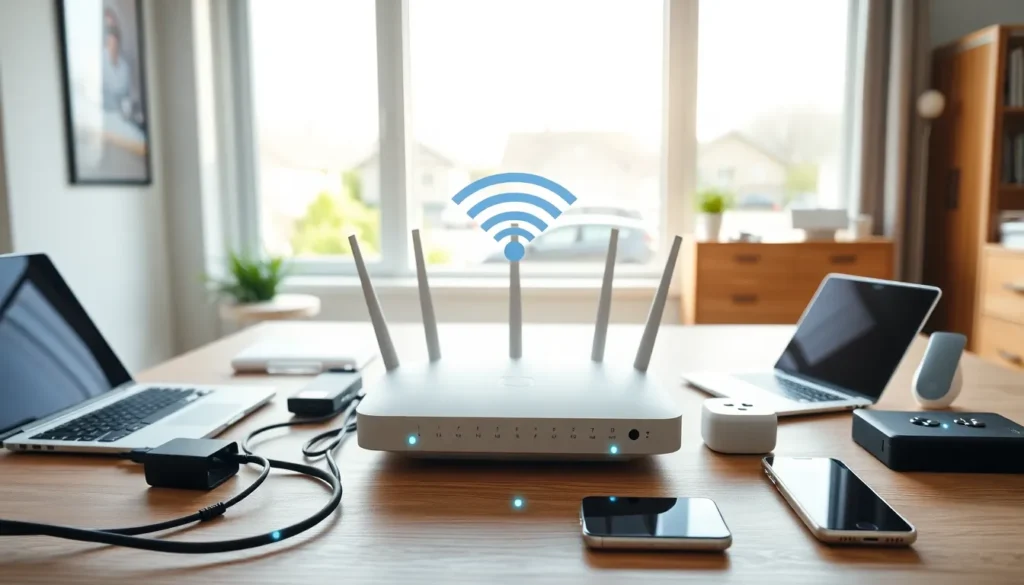

The best home networking setup makes everything work better. Streaming, gaming, video calls, and smart devices all depend on a solid network. A weak connection causes frustration. A strong one disappears into the background and just works.
This guide covers everything needed to build a reliable home network. It explains how to assess networking needs, choose the right equipment, optimize performance, and fix common problems. Whether someone is setting up their first network or upgrading an existing one, this article provides practical steps to get it right.
Table of Contents
ToggleKey Takeaways
- The best home networking setup combines both wired and wireless connections to maximize speed, reliability, and coverage throughout your home.
- Wi-Fi 6 or Wi-Fi 6E routers with MU-MIMO technology handle multiple devices efficiently, while mesh systems eliminate dead zones in larger homes.
- Prioritize Ethernet connections (Cat6 cables) for stationary devices like gaming consoles, smart TVs, and desktop computers to reduce latency and interference.
- Optimize network performance by updating router firmware regularly, separating 2.4 GHz and 5 GHz bands, and enabling Quality of Service (QoS) settings.
- Secure your home network with WPA3 encryption, a strong unique password, and a separate guest network to protect your devices and data.
- Plan for future needs by building extra capacity into your network, as smart home devices and remote work demands continue to grow.
Understanding Your Home Networking Needs
Before buying any equipment, it helps to understand what the network needs to support. Every household has different demands.
Start by counting the devices. Most homes now have 15 to 25 connected devices, smartphones, laptops, tablets, smart TVs, gaming consoles, security cameras, and smart home gadgets. Each device uses bandwidth. More devices mean higher network demands.
Next, consider usage patterns. A household that streams 4K video on multiple TVs while someone else plays online games needs more bandwidth than a home where people just check email. Video conferencing requires consistent upload speeds. Cloud backups run in the background and eat bandwidth too.
Home size matters for the best home networking outcomes. A small apartment might work fine with a single router. A two-story house with thick walls often needs a mesh system or access points to eliminate dead zones.
Internet speed from the provider sets the ceiling. A gigabit fiber connection offers different possibilities than a 50 Mbps cable plan. The home network should be capable of handling the full speed the ISP provides.
Finally, think about future needs. Smart home devices keep multiplying. More family members work from home now. Building some extra capacity into the network saves money and hassle later.
Essential Equipment for a Strong Home Network
The right equipment forms the foundation of any best home networking setup. Here’s what matters most.
Routers and Mesh Systems
The router is the heart of any home network. It directs traffic between devices and the internet. A good router handles many connections without slowing down.
Wi-Fi 6 (802.11ax) routers offer the latest standard. They provide faster speeds, better performance with multiple devices, and improved range compared to older Wi-Fi 5 models. Wi-Fi 6E routers add a third frequency band (6 GHz) for even less congestion.
Mesh systems work well for larger homes. They use multiple units placed throughout the house to create one seamless network. Devices connect to the nearest unit automatically. Popular options include systems from Eero, Google Nest, and TP-Link Deco. These solve coverage problems that a single router cannot.
For best home networking results, look for routers with at least a 1 GHz processor, 512 MB of RAM, and support for MU-MIMO technology. These specs help the router manage many devices at once.
Wired vs. Wireless Connections
Wireless connections offer convenience. Wired connections offer speed and reliability. The best home networking setups use both.
Ethernet cables provide stable, fast connections. They work perfectly for devices that don’t move, desktop computers, gaming consoles, smart TVs, and streaming boxes. A wired connection eliminates interference and latency issues.
Cat6 or Cat6a cables handle speeds up to 10 Gbps. They cost a bit more than Cat5e but offer better performance and future-proofing. For most homes, Cat6 is plenty.
A network switch expands available Ethernet ports. If the router only has four ports but six devices need wired connections, an 8-port gigabit switch solves the problem for around $20-30.
Wireless connections suit mobile devices and smart home gadgets. Position the router centrally, away from walls and metal objects. Keep it elevated, on a shelf rather than the floor. These simple steps improve wireless coverage significantly.
Tips for Optimizing Your Home Network Performance
Good equipment alone doesn’t guarantee the best home networking experience. Proper setup and maintenance make a big difference.
Choose the right channel. Wi-Fi routers broadcast on specific channels. In crowded areas, many networks compete on the same channels. Use a Wi-Fi analyzer app to find less congested channels. Most modern routers can select channels automatically, but manual selection sometimes works better.
Separate the bands. Create different network names for 2.4 GHz and 5 GHz bands. The 5 GHz band offers faster speeds but shorter range. The 2.4 GHz band travels farther but runs slower and faces more interference. Connect nearby devices to 5 GHz and distant devices to 2.4 GHz.
Update firmware regularly. Router manufacturers release updates that fix bugs, patch security holes, and improve performance. Check for updates monthly or enable automatic updates if available.
Set up Quality of Service (QoS). QoS settings let the router prioritize certain types of traffic. Video calls and gaming can get priority over background downloads. This prevents one heavy user from hogging all the bandwidth.
Secure the network properly. Use WPA3 encryption if devices support it, or WPA2 at minimum. Create a strong, unique password. Set up a guest network for visitors so they can’t access shared files or devices on the main network.
Restart the router periodically. A weekly restart clears memory and can resolve slowdowns. Some routers allow scheduled automatic restarts during low-usage hours.
These best home networking practices keep the network running smoothly day after day.
Common Home Networking Problems and How to Fix Them
Even well-designed networks run into issues. Here are solutions to the most frequent problems.
Slow speeds throughout the house. First, test the internet speed directly connected to the modem. If speeds are slow there, contact the ISP. If speeds are fine at the modem but slow on devices, the router or network configuration is the issue. Try restarting the router, updating firmware, or upgrading to a better router.
Dead zones and weak signal areas. Physical barriers like walls, floors, and appliances block Wi-Fi signals. Move the router to a central location. If that doesn’t help, add a mesh satellite unit, a Wi-Fi extender, or run an Ethernet cable to a second access point in the problem area.
Intermittent disconnections. This often stems from interference or overheating. Move the router away from cordless phones, microwaves, and baby monitors. Ensure the router has good ventilation. Check if the problem happens only on certain devices, that points to a device issue rather than a network issue.
Devices can’t connect. Verify the password is correct. Try forgetting the network on the device and reconnecting. Restart both the router and the device. Check if the router has reached its device limit, older routers may struggle with more than 15-20 connections.
One device gets all the bandwidth. Large downloads or uploads can consume available bandwidth. Enable QoS settings to balance traffic. Some routers allow bandwidth limits for specific devices.
Network security concerns. Change the default router admin password immediately. Disable remote management unless needed. Review connected devices regularly and remove any unknown ones. These steps protect the best home networking setup from unauthorized access.


