
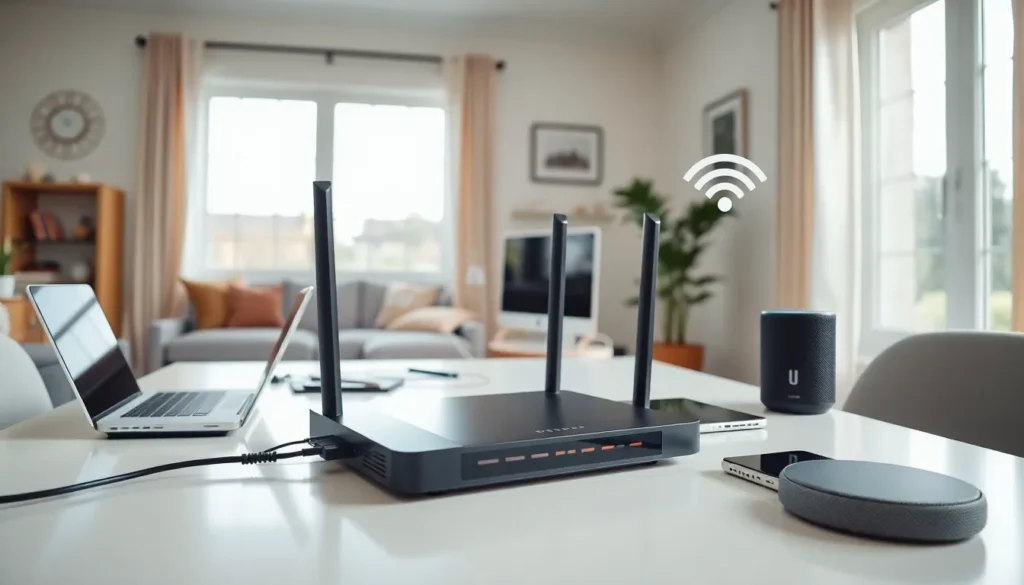

Home networking has become essential for modern households. Most families now own multiple devices that need internet access, smartphones, laptops, smart TVs, gaming consoles, and even refrigerators. A well-designed home network keeps all these devices connected without slowdowns or dead zones.
This guide covers everything needed to build a reliable home networking setup. Readers will learn about basic concepts, required equipment, step-by-step setup instructions, performance optimization, and security best practices. Whether someone is starting from scratch or upgrading an existing system, this information provides a clear path forward.
Table of Contents
ToggleKey Takeaways
- A reliable home networking setup requires a quality modem, router, and proper placement in a central, elevated location away from interference sources.
- Combine wired Ethernet connections for stationary devices with Wi-Fi for portable devices to maximize speed and bandwidth efficiency.
- Use WPA3 encryption, strong passwords, and a separate guest network to protect your home network from security threats.
- Mesh network systems eliminate Wi-Fi dead zones in larger homes by providing seamless coverage across multiple floors and rooms.
- Regularly update router firmware to improve performance, fix bugs, and patch security vulnerabilities.
- Connect nearby devices to the 5 GHz band for faster speeds and distant devices to the 2.4 GHz band for better range.
Understanding the Basics of Home Networking
A home network connects devices within a household so they can share internet access, files, and resources like printers. The network creates a bridge between the outside internet and the devices inside.
How Home Networks Work
Every home network starts with an internet connection from a service provider. A modem receives this signal and converts it into data that devices can use. A router then distributes that data across the network, either through cables or wirelessly.
Devices connect to the router and receive a unique IP address. This address acts like a mailing label, telling data packets where to go. The router manages traffic between all connected devices and the internet.
Wired vs. Wireless Connections
Home networking offers two main connection types. Wired connections use Ethernet cables to link devices directly to the router. This method provides faster speeds and more stable connections. It works best for desktop computers, gaming consoles, and streaming devices that stay in one place.
Wireless connections use Wi-Fi signals broadcast by the router. Laptops, smartphones, and tablets typically connect this way. Wi-Fi offers convenience and mobility but can experience interference from walls, appliances, and distance from the router.
Most households use a combination of both. Stationary devices benefit from wired connections, while portable devices rely on Wi-Fi.
Essential Equipment for Your Home Network
Building a solid home networking setup requires a few key pieces of hardware. The quality of this equipment directly affects performance and reliability.
Modem
The modem connects to the internet service provider’s line, whether cable, fiber, or DSL. Some providers supply a modem, while others allow customers to purchase their own. Buying a modem can save money on rental fees over time.
Router
The router is the heart of any home network. It creates the Wi-Fi signal and manages traffic between devices. Modern routers support Wi-Fi 6 or Wi-Fi 6E standards, which offer faster speeds and better performance with multiple devices.
Key router features to consider include:
- Dual-band or tri-band support for less congestion
- MU-MIMO technology for handling multiple devices simultaneously
- Gigabit Ethernet ports for wired connections
- Quality of Service (QoS) settings for prioritizing traffic
Modem-Router Combos
Many internet providers offer combination units that include both modem and router functions. These save space and simplify setup. But, separate devices often provide better performance and more upgrade flexibility.
Additional Equipment
Larger homes may need extra gear for complete coverage. Wi-Fi extenders boost signals to distant rooms. Mesh network systems use multiple units that work together for seamless coverage throughout a home. Ethernet switches add more wired connection ports when the router alone isn’t enough.
Setting Up Your Home Network Step by Step
Setting up a home network doesn’t require technical expertise. Following these steps gets most systems running within an hour.
Step 1: Position the Router
Router placement matters more than most people realize. The device should sit in a central location, elevated off the floor. Avoid placing it near metal objects, microwaves, or cordless phones that can interfere with the signal.
Step 2: Connect the Hardware
First, connect the modem to the internet service provider’s outlet. Wait for it to fully boot up, this usually takes a few minutes. Then connect the router to the modem using an Ethernet cable. Power on the router and wait for the indicator lights to show a stable connection.
Step 3: Access Router Settings
Open a web browser on a connected device and enter the router’s IP address (commonly 192.168.1.1 or 192.168.0.1). Log in with the default credentials found in the router’s manual or on a sticker on the device itself.
Step 4: Configure the Network
Change the default network name (SSID) to something recognizable. Create a strong password, at least 12 characters with a mix of letters, numbers, and symbols. Update the admin password to prevent unauthorized access to router settings.
Step 5: Connect Devices
On each device, search for available Wi-Fi networks. Select the new network name and enter the password. The device should connect automatically in the future.
Improving Wi-Fi Coverage and Speed
Even a good home networking setup can have weak spots. Several strategies help maximize coverage and speed throughout a home.
Optimize Router Placement
Moving the router just a few feet can dramatically improve coverage. Central placement distributes the signal more evenly. Keeping the router away from thick walls and electronic devices reduces interference.
Update Firmware
Router manufacturers release firmware updates that fix bugs and improve performance. Check the router’s admin panel regularly for available updates. Many newer routers update automatically.
Use the Right Frequency Band
Modern routers broadcast on 2.4 GHz and 5 GHz bands. The 2.4 GHz band travels farther but offers slower speeds. The 5 GHz band provides faster speeds but has shorter range. Connect distant devices to 2.4 GHz and nearby devices to 5 GHz for the best results.
Add Mesh Network Units
For larger homes or those with multiple floors, mesh systems eliminate dead zones. These systems use multiple access points that communicate with each other. Devices automatically connect to the strongest signal as users move around.
Use Wired Connections When Possible
Ethernet cables deliver faster, more reliable speeds than Wi-Fi. Running cables to stationary devices like gaming consoles, smart TVs, and desktop computers frees up wireless bandwidth for other devices. Powerline adapters offer an alternative when running cables isn’t practical, they use existing electrical wiring to transmit data.
Securing Your Home Network
A home network without proper security leaves personal data exposed. Hackers can steal information, use bandwidth, or access connected devices. These measures protect against common threats.
Use Strong Encryption
WPA3 is the current standard for Wi-Fi encryption. If the router supports it, enable WPA3 in the security settings. Older devices may only support WPA2, this remains acceptable but less secure than WPA3. Avoid WEP, which hackers can crack in minutes.
Create a Strong Password
The Wi-Fi password should be unique and difficult to guess. Avoid using personal information like birthdays or addresses. A random combination of at least 12 characters provides good protection.
Set Up a Guest Network
Most routers allow creating a separate guest network. Visitors connect to this network instead of the main one. Guest networks isolate visitor devices from personal files and smart home equipment.
Disable Remote Management
Remote management lets users access router settings from outside the home network. Unless specifically needed, turn this feature off. It closes a potential entry point for attackers.
Keep Firmware Updated
Firmware updates often patch security vulnerabilities. Enabling automatic updates ensures the router stays protected against newly discovered threats.
Monitor Connected Devices
Periodically review the list of devices connected to the home network. Unfamiliar devices may indicate unauthorized access. Most router admin panels show all connected devices with their names and IP addresses.


