
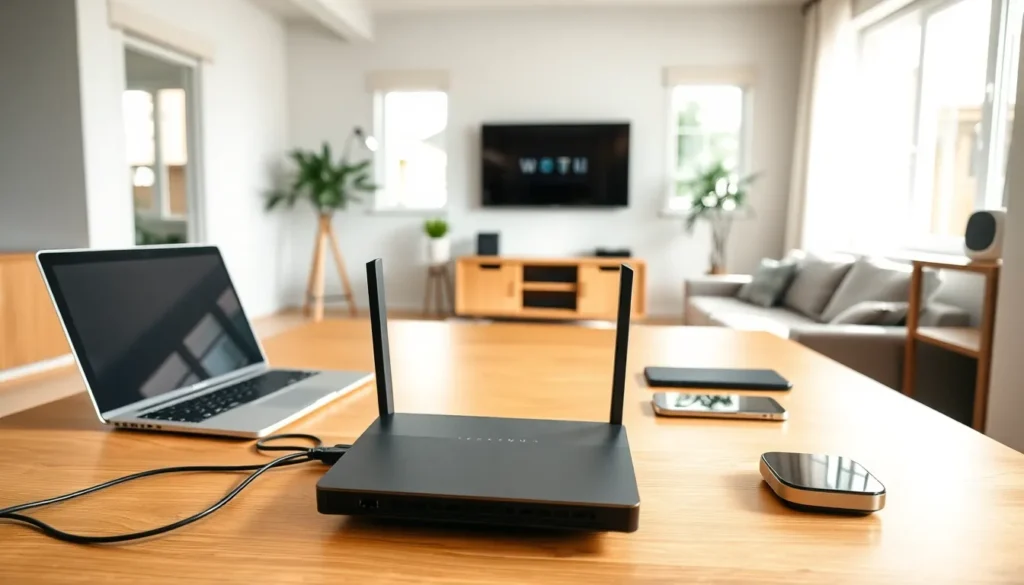

Home networking for beginners doesn’t have to feel overwhelming. A home network connects devices like computers, phones, smart TVs, and gaming consoles so they can share an internet connection and communicate with each other. Whether someone wants to stream movies in the living room, work from a home office, or control smart home gadgets, a reliable home network makes it all possible.
This guide breaks down the basics of home networking for beginners. Readers will learn what equipment they need, how to set everything up, and how to keep their network safe. By the end, anyone can build a functional home network, even with zero technical experience.
Table of Contents
ToggleKey Takeaways
- Home networking for beginners starts with understanding the essentials: a modem connects you to the internet, while a router distributes that connection to all your devices.
- Position your router in a central location away from walls and interference sources like microwaves to maximize Wi-Fi coverage throughout your home.
- Secure your network from day one by changing default router credentials, using WPA3 or WPA2 encryption, and creating a strong 12+ character password.
- For larger homes with Wi-Fi dead zones, invest in a mesh system to create seamless whole-home coverage.
- The average U.S. household has over 20 connected devices, making a well-planned home network essential for preventing bandwidth competition and slowdowns.
- Troubleshoot common issues by restarting your modem and router, checking cable connections, and running speed tests to verify performance.
What Is a Home Network and Why Do You Need One?
A home network is a group of devices connected together within a household. These devices share resources like internet access, files, and printers. The network can use wired connections (Ethernet cables) or wireless connections (Wi-Fi).
So why does someone need a home network? Here are the main reasons:
- Internet sharing: One internet connection serves multiple devices simultaneously.
- File sharing: Users can transfer photos, documents, and videos between computers without USB drives.
- Streaming: Smart TVs, gaming consoles, and streaming sticks need network access to deliver content.
- Smart home devices: Thermostats, cameras, and voice assistants rely on home networking to function.
- Remote work: A stable home network supports video calls, cloud storage, and VPN connections.
The average U.S. household now has more than 20 connected devices. Without a proper home network, these devices compete for bandwidth and create frustrating slowdowns. A well-planned home network distributes resources efficiently and keeps everything running smoothly.
Essential Equipment for Your Home Network
Building a home network requires a few key pieces of hardware. Here’s what beginners need to know:
Modem
The modem connects the home to the internet service provider (ISP). It translates the signal from the ISP into data that devices can use. Many ISPs provide a modem as part of the service, though users can purchase their own.
Router
The router distributes the internet connection to all devices in the home. It creates the local network and assigns IP addresses to each device. Most routers today offer both wired Ethernet ports and wireless Wi-Fi capabilities.
Modem-Router Combo
Some devices combine the modem and router into one unit. These combo devices save space and simplify setup. But, separate units often provide better performance and more flexibility.
Ethernet Cables
Ethernet cables provide wired connections between devices. They deliver faster speeds and more stable connections than Wi-Fi. Cat5e or Cat6 cables work well for most home networking needs.
Wi-Fi Extenders or Mesh Systems
Larger homes may experience weak Wi-Fi signals in certain areas. Wi-Fi extenders boost the existing signal. Mesh systems create a seamless network using multiple access points throughout the home. For serious home networking for beginners, a mesh system often proves worth the investment.
Setting Up Your First Home Network Step by Step
Setting up a home network takes about 30 minutes for most people. Follow these steps:
Step 1: Position the modem and router
Place the modem near the cable or phone outlet where the internet enters the home. Position the router in a central location for the best Wi-Fi coverage. Avoid closets, basements, and areas surrounded by thick walls.
Step 2: Connect the modem
Plug the coaxial cable or phone line into the modem. Connect the modem to a power outlet. Wait for the indicator lights to show a stable connection (usually 2-5 minutes).
Step 3: Connect the router to the modem
Use an Ethernet cable to connect the modem’s output port to the router’s WAN or Internet port. Power on the router and wait for it to boot up.
Step 4: Configure the router
Open a web browser on a computer or phone. Enter the router’s IP address (often 192.168.1.1 or 192.168.0.1). Log in using the default credentials printed on the router. Change the default network name (SSID) and create a strong password.
Step 5: Connect devices
On each device, open Wi-Fi settings and select the new network name. Enter the password. Devices with Ethernet ports can connect directly to the router for faster speeds.
Home networking for beginners becomes much easier once the first setup is complete. Most settings rarely need adjustment after this initial configuration.
Basic Security Tips to Protect Your Network
An unsecured home network invites trouble. Hackers can steal personal data, hijack bandwidth, or access connected devices. These security practices protect the network:
Change default credentials immediately
Routers ship with generic usernames and passwords like “admin” and “password.” Attackers know these defaults. Create unique login credentials during initial setup.
Use WPA3 or WPA2 encryption
Encryption scrambles data traveling over the network. WPA3 offers the strongest protection. If the router doesn’t support WPA3, WPA2 remains a solid choice. Never use WEP, it’s outdated and easily cracked.
Create a strong Wi-Fi password
A good password contains at least 12 characters with a mix of letters, numbers, and symbols. Avoid obvious choices like birthdays or pet names.
Update router firmware regularly
Manufacturers release firmware updates to fix security holes. Check for updates every few months or enable automatic updates if available.
Set up a guest network
A guest network provides internet access to visitors without exposing the main network. This keeps personal devices and files separate from guest devices.
Home networking for beginners must include security from day one. These simple steps prevent most common attacks.
Troubleshooting Common Home Network Issues
Even a well-configured home network encounters problems occasionally. Here are solutions to the most frequent issues:
Slow internet speeds
First, run a speed test to check actual performance. If speeds fall below what the ISP promises, restart the modem and router. Move the router away from interference sources like microwaves, cordless phones, and baby monitors. Consider upgrading to a dual-band or tri-band router that offers less congested frequencies.
Devices won’t connect to Wi-Fi
Verify the Wi-Fi password is correct. Restart the device attempting to connect. Forget the network in device settings and reconnect fresh. Check if the router has reached its device limit, some budget routers struggle with more than 15-20 connections.
Wi-Fi dead zones
Some rooms receive weak or no signal. Reposition the router to a more central location. Add a Wi-Fi extender or upgrade to a mesh system for whole-home coverage.
Intermittent connection drops
Frequent disconnections often indicate an overheating router or failing hardware. Ensure the router has adequate ventilation. Check all cable connections for damage. If problems persist, the router may need replacement.
Can’t access router settings
Double-check the router’s IP address in the device manual or on a sticker on the router itself. Clear the browser cache. Try a different browser or device. As a last resort, reset the router to factory settings using the small reset button.


