
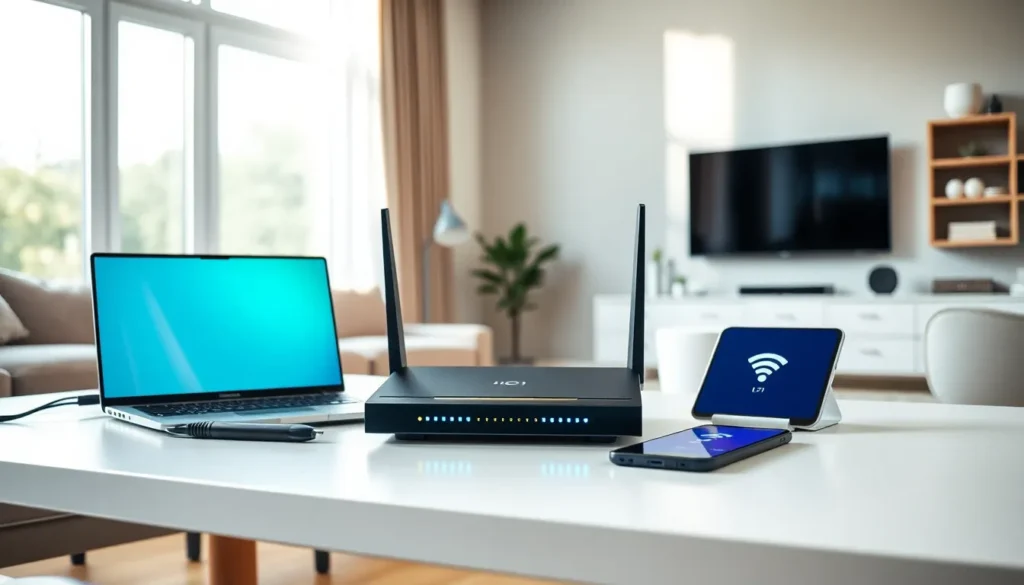

A solid home networking guide can save hours of frustration and hundreds of dollars in tech support. Most households now run 15 to 25 connected devices, smartphones, laptops, smart TVs, gaming consoles, and IoT gadgets all competing for bandwidth. Without proper setup, users face dead zones, buffering, and security risks.
This home networking guide covers everything needed to build a fast, secure, and reliable network. Readers will learn about essential components, router selection, step-by-step setup, Wi-Fi optimization, and critical security measures. Whether someone streams 4K content, works from home, or just wants stable connections for daily browsing, this guide delivers practical solutions.
Table of Contents
ToggleKey Takeaways
- A comprehensive home networking guide helps you build a fast, secure network by understanding core components like modems, routers, and mesh systems.
- Position your router centrally and elevated to maximize Wi-Fi coverage throughout your home.
- Wi-Fi 6 routers offer the best value in 2025, handling multiple devices more efficiently than older standards.
- Always change default credentials and enable WPA3 encryption to protect your network from security threats.
- Use a Wi-Fi analyzer to select less congested channels, and consider mesh systems for homes over 2,000 square feet.
- Regularly update firmware and restart your router monthly to maintain optimal home networking performance.
Understanding Home Network Components
Every home network relies on a few core components working together. Understanding these parts makes troubleshooting easier and helps users make smarter purchasing decisions.
Modem: The modem connects the home to the internet service provider (ISP). It translates the signal from the ISP into data that devices can use. Cable, DSL, and fiber connections each require specific modem types.
Router: The router distributes the internet connection to multiple devices. It assigns IP addresses, manages traffic, and creates the Wi-Fi signal. Many ISPs provide modem-router combo units, but standalone routers often deliver better performance.
Access Points and Mesh Systems: Large homes may need additional access points or mesh systems to extend coverage. Mesh systems use multiple nodes that communicate with each other, eliminating dead zones without the signal drop-off that repeaters cause.
Ethernet Cables: Wired connections remain faster and more stable than Wi-Fi. Cat6 or Cat6a cables support speeds up to 10 Gbps and reduce latency for gaming or video calls.
Network Switch: Homes with many wired devices benefit from a network switch. This device expands available Ethernet ports beyond what the router provides.
A home networking guide wouldn’t be complete without mentioning powerline adapters. These devices use existing electrical wiring to extend network connections to rooms where running Ethernet isn’t practical.
Choosing the Right Router for Your Needs
Router selection directly impacts network speed, coverage, and features. Here’s what matters most.
Wi-Fi Standard: Wi-Fi 6 (802.11ax) routers handle multiple devices better than older Wi-Fi 5 models. Wi-Fi 6E adds a 6 GHz band for even less interference. For most homes, Wi-Fi 6 offers the best value in 2025.
Speed Ratings: Manufacturers advertise combined speeds across all bands. A router listed as AC1900 might offer 600 Mbps on 2.4 GHz and 1300 Mbps on 5 GHz. Real-world speeds depend on device capabilities, distance, and interference.
Coverage Area: Square footage ratings provide rough estimates. Homes with multiple floors, thick walls, or unusual layouts often need mesh systems regardless of the router’s claimed range.
Processor and RAM: Routers with faster processors and more RAM handle heavy traffic better. Homes with many simultaneous users should prioritize these specs.
Port Selection: Look for Gigabit Ethernet ports. Some routers include 2.5 Gbps or 10 Gbps ports for future-proofing or connecting to network-attached storage.
Key Features to Consider:
- MU-MIMO for serving multiple devices simultaneously
- Quality of Service (QoS) settings for prioritizing specific traffic
- Guest network capability
- Parental controls
- VPN support
Budget routers work fine for light users. Heavy streamers, gamers, and remote workers benefit from mid-range or premium models in their home networking setup.
Setting Up Your Home Network Step by Step
Follow these steps to set up a home network correctly the first time.
Step 1: Position the Router Centrally
Place the router in a central location, elevated off the floor. Avoid closets, corners, and areas near metal objects, microwaves, or cordless phones. These block or interfere with signals.
Step 2: Connect the Hardware
Connect the modem to the router’s WAN port using an Ethernet cable. Power on the modem first, wait two minutes, then power on the router. This sequence ensures proper handshaking between devices.
Step 3: Access the Router’s Admin Panel
Open a web browser and enter the router’s IP address (typically 192.168.0.1 or 192.168.1.1). Log in using default credentials found in the manual or on the router’s label.
Step 4: Change Default Credentials
Immediately change the admin username and password. Default credentials are publicly known and create serious security vulnerabilities.
Step 5: Configure Wi-Fi Settings
Create a network name (SSID) that doesn’t reveal personal information or router brand. Set a strong password using WPA3 encryption if available, or WPA2 as a minimum.
Step 6: Update Firmware
Check for firmware updates and install them. Manufacturers release updates to fix bugs, patch security holes, and improve performance.
Step 7: Connect Devices
Connect devices to the network using the new credentials. Configure wired connections for stationary devices like desktop computers, gaming consoles, and smart TVs.
This home networking guide recommends saving all credentials in a secure location for future reference.
Optimizing Wi-Fi Coverage and Performance
Even the best router needs optimization to perform well. These adjustments can dramatically improve the home network experience.
Select the Right Channel
Routers automatically select Wi-Fi channels, but crowded channels cause interference. Use a Wi-Fi analyzer app to identify less congested channels. For 2.4 GHz, channels 1, 6, and 11 don’t overlap with each other.
Use Both Frequency Bands
The 5 GHz band offers faster speeds but shorter range. The 2.4 GHz band travels farther but is slower and more prone to interference. Assign devices based on their needs and locations.
Reduce Interference
Keep the router away from other electronics. Baby monitors, Bluetooth devices, and cordless phones can interfere with Wi-Fi signals. Thick walls, mirrors, and aquariums also block signals.
Add Mesh Nodes or Access Points
Homes over 2,000 square feet or with multiple floors often need additional coverage. Mesh systems maintain a single network name while extending coverage seamlessly.
Enable Band Steering
This feature automatically moves devices to the optimal band. It prevents older devices from clogging the faster 5 GHz band.
Limit Bandwidth-Heavy Applications
QoS settings let users prioritize video calls or gaming over background downloads. This prevents one device from monopolizing bandwidth.
Regular Maintenance
Restart the router monthly to clear memory and refresh connections. A quick reboot fixes many common home networking issues.
Essential Network Security Tips
A home network carries personal data, financial information, and private communications. Security should never be an afterthought.
Use Strong Encryption
WPA3 provides the strongest protection currently available. If devices don’t support WPA3, use WPA2-AES. Never use WEP or open networks, they’re essentially unprotected.
Create Strong Passwords
Use passwords with at least 12 characters including uppercase letters, lowercase letters, numbers, and symbols. Avoid dictionary words, birthdays, and common patterns.
Set Up a Guest Network
Guest networks isolate visitors from the main network. This prevents guests from accidentally (or intentionally) accessing shared files, printers, or other devices.
Disable WPS
Wi-Fi Protected Setup (WPS) allows easy device connection but has known security flaws. Disable this feature in the router settings.
Keep Firmware Updated
Manufacturers patch vulnerabilities through firmware updates. Enable automatic updates or check manually every few months.
Change Default Settings
Beyond passwords, change the default SSID and disable remote management unless specifically needed. Rename the network to something that doesn’t identify the household or equipment.
Consider a Firewall
Most routers include basic firewall protection. Users can enhance security with additional software firewalls on individual devices.
Monitor Connected Devices
Regularly check which devices connect to the network. Unknown devices could indicate unauthorized access. Most router apps display connected devices and allow blocking.
Following this home networking guide’s security recommendations protects the entire household from digital threats.


